How to Bypass Geo-Restrictions with a Free Proxy in 2026
Learn how to access geo-blocked websites, streaming services, and region-locked content using free proxies. Step-by-step guide with browser and code examples.
How to Bypass Geo-Restrictions with a Free Proxy in 2026
Geo-restrictions block access to websites, streaming content, and online services based on your physical location. Proxies let you route your traffic through a server in another country, making it appear as if you're browsing from there.
What Are Geo-Restrictions?
Websites use your IP address to determine your location. Based on that, they can:
- Block access entirely — "This content is not available in your country"
- Show different content — Different pricing, different catalog, different search results
- Restrict features — Some APIs or downloads are region-locked
Common examples: - Streaming services with region-locked libraries - News sites blocking EU visitors (GDPR avoidance) - Game servers restricted to specific regions - Price discrimination (different prices by country)
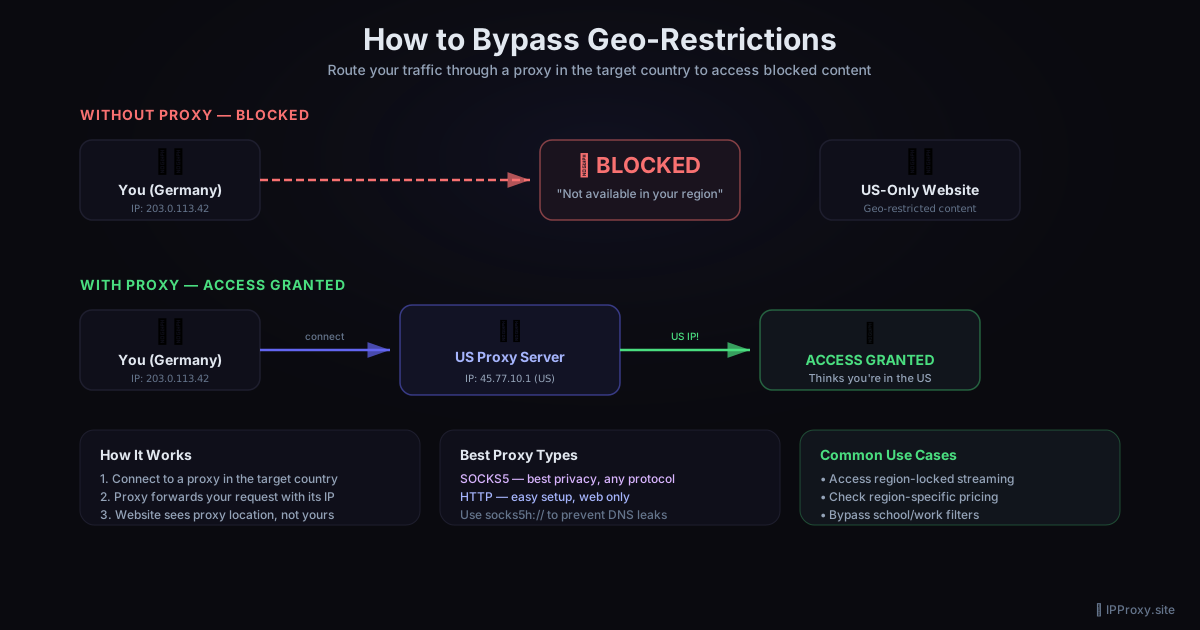
How Proxies Bypass Geo-Restrictions
When you connect through a proxy server in the US, websites see the proxy's US IP address instead of your real IP. They think you're in the US and serve you US content.
You (Germany) → Proxy (US) → Website
Website sees: US IP address
Website serves: US content
Method 1: Browser Extension (Easiest)
The fastest way to bypass geo-blocks for casual browsing.
FoxyProxy (Chrome/Firefox)
- Install FoxyProxy from your browser's extension store
- Open FoxyProxy settings
- Click "Add New Proxy"
- Enter the proxy details:
- IP Address: (e.g.,
45.77.10.1) - Port: (e.g.,
8080) - Type: HTTP or SOCKS5
- Enable the proxy and browse
Where to find proxies by country
IPProxy.site lists free proxies with country codes. Look for proxies in the country whose content you want to access.
Method 2: Browser Proxy Settings (No Extension)
Chrome (Windows)
Chrome uses your system proxy settings:
- Open Settings → System → Open your computer's proxy settings
- Enable Manual proxy setup
- Enter the proxy IP and port
- Save and browse
Firefox
Firefox has its own proxy settings:
- Open Settings → General → scroll to Network Settings
- Click Settings
- Select Manual proxy configuration
- Enter your proxy details
- Check SOCKS v5 for SOCKS5 proxies
- Check Proxy DNS when using SOCKS v5 (important for privacy)
Method 3: Python Script
For automated access to geo-restricted APIs or content:
import requests

# Use a US proxy to access US-only content
proxy = "http://45.77.10.1:8080"
proxies = {"http": proxy, "https": proxy}

response = requests.get(
    "https://example.com/us-only-content",
    proxies=proxies,
    timeout=10,
)
print(response.status_code)
With SOCKS5 (better for privacy)
import requests

proxy = "socks5h://45.77.10.1:1080"
proxies = {"http": proxy, "https": proxy}

response = requests.get("https://httpbin.org/ip", proxies=proxies)
print(response.json())  # Shows the proxy's IP
Method 4: System-Wide Proxy (All Apps)
Windows
- Settings → Network & Internet → Proxy
- Under Manual proxy setup, toggle On
- Enter proxy address and port
- Click Save
All applications that respect system proxy settings will now route through the proxy.
macOS
- System Settings → Network → your connection → Proxies
- Enable SOCKS Proxy or Web Proxy (HTTP)
- Enter the proxy server address and port
- Click OK → Apply
Linux
Set environment variables:
export http_proxy="http://45.77.10.1:8080"
export https_proxy="http://45.77.10.1:8080"
# Or for SOCKS5:
export ALL_PROXY="socks5://45.77.10.1:1080"
Choosing the Right Proxy Location
The proxy's country matters. To access content restricted to a specific region, you need a proxy in that region:
| Content You Want | Proxy Location Needed |
|---|---|
| US streaming libraries | United States |
| UK BBC iPlayer | United Kingdom |
| Japanese game servers | Japan |
| EU pricing | Any EU country |
| Unrestricted browsing | Anywhere outside restricted zone |
Free Proxy Limitations
Be realistic about what free proxies can do:
Works well: - Accessing geo-blocked websites - Reading region-locked articles - Checking region-specific pricing - Accessing blocked APIs - Basic research and browsing
Doesn't work well: - Streaming HD video (too slow, detected quickly) - Logging into sensitive accounts (security risk) - Long sessions (free proxies rotate/die) - High-bandwidth downloads
Tips for Reliable Geo-Bypass
-
Use freshly validated proxies — Stale proxy lists are full of dead IPs. IPProxy.site validates every 30 minutes.
-
Try SOCKS5 over HTTP — SOCKS5 proxies are harder for websites to detect and block.
-
Check your IP after connecting — Visit httpbin.org/ip to confirm the proxy is working and showing the right country.
-
Have backups ready — Free proxies die. Keep 5-10 working proxies handy so you can switch instantly.
-
Clear cookies before switching — Websites can track your real location via cookies set before you enabled the proxy.
-
Use DNS-over-proxy — With SOCKS5, use
socks5h://to prevent DNS leaks that reveal your real location.
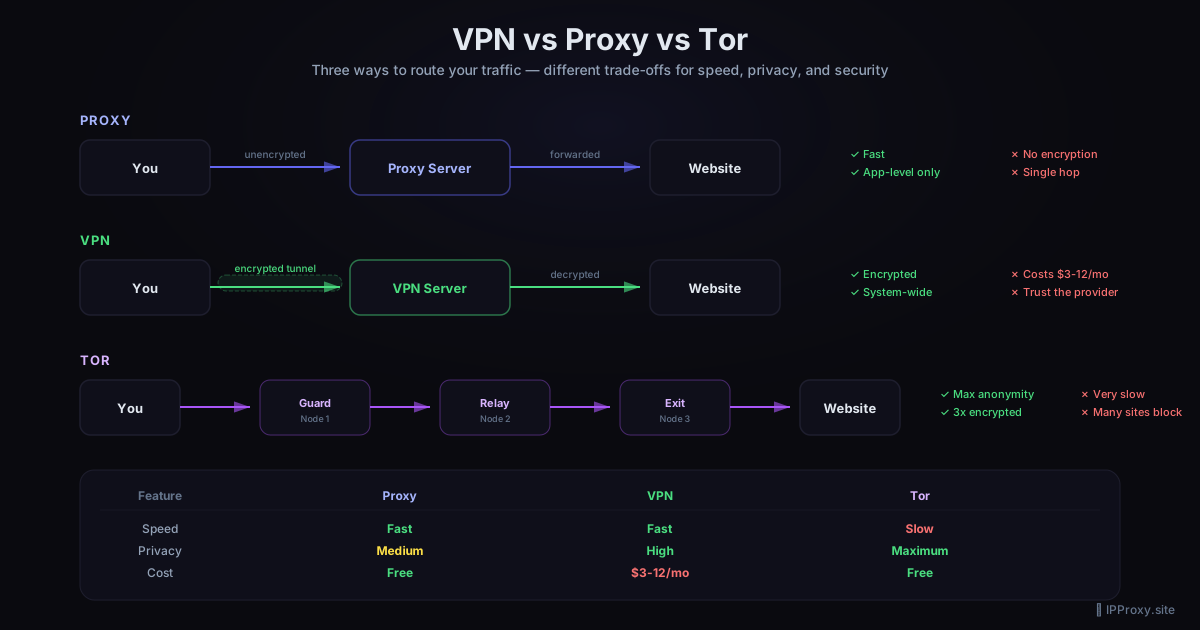
Proxy vs VPN for Geo-Bypass
| Feature | Free Proxy | VPN |
|---|---|---|
| Cost | Free | $3-12/month |
| Speed | Variable | Consistent |
| Encryption | No | Yes |
| All apps | Depends on setup | Yes (system-wide) |
| Reliability | Low (proxies die) | High |
| Best for | Quick bypass, scraping | Streaming, daily use |
For occasional geo-bypass and web scraping, free proxies are perfect. For daily streaming or privacy-critical use, consider a VPN.
Get Started
- Visit IPProxy.site for a free, validated proxy list
- Pick a proxy from the country you need
- Configure your browser or script using the methods above
- Verify it works at httpbin.org/ip
Proxy lists are updated every 30 minutes, so you'll always have fresh, working proxies to use.
Related Guides
- HTTP vs SOCKS5 Proxies: Key Differences — choose the right proxy type
- How to Use a SOCKS5 Proxy with Python — automate geo-bypass in scripts
- Free SOCKS5 Proxy List 2026 — working SOCKS5 proxies updated every 30 min
- Free Proxy Format Converter — convert proxy lists to your preferred format
Get a Fresh, Tested Proxy Right Now
Every proxy is validated every 30 minutes. 1354 working proxies available right now.